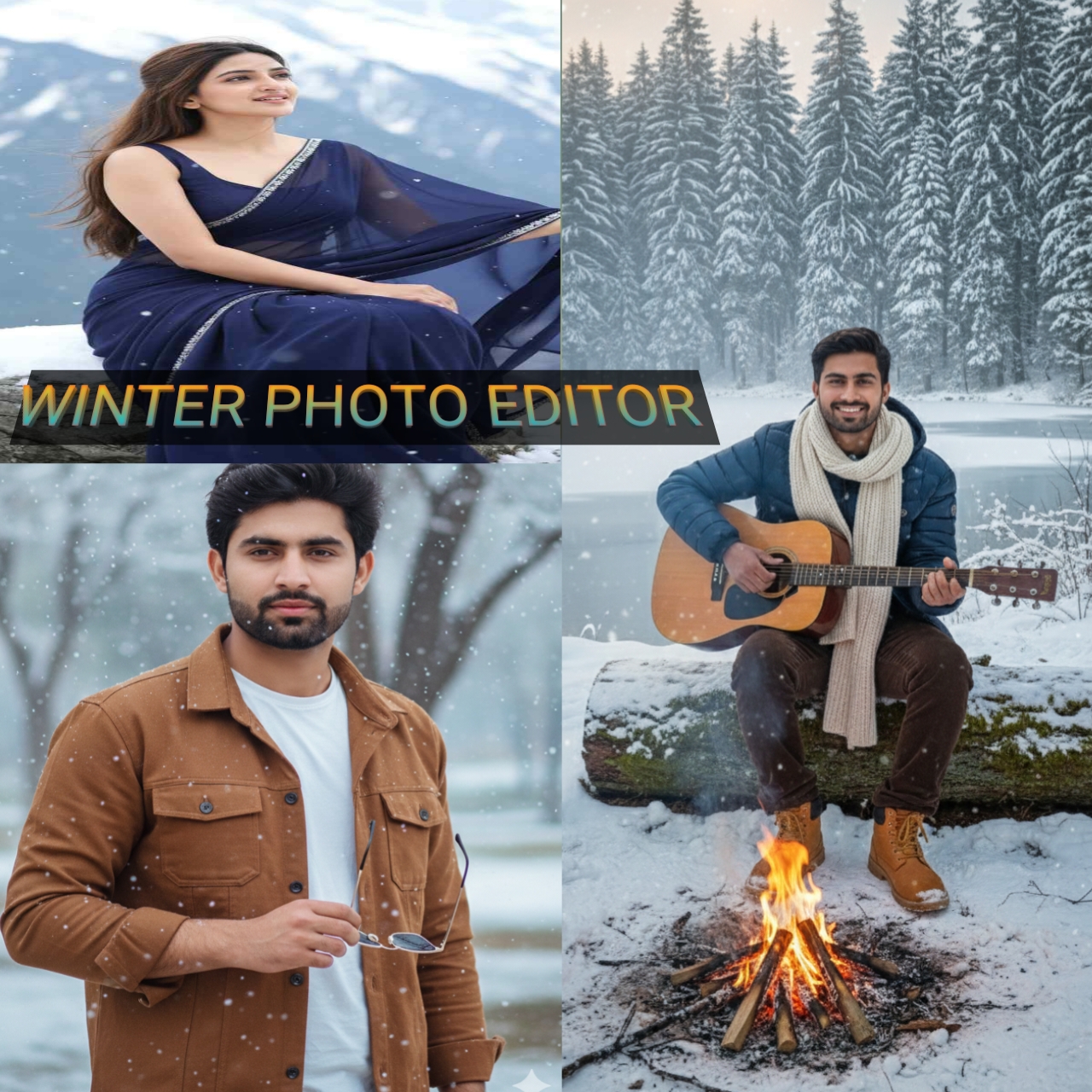
Transform Your Photos into Winter Magic with Google Gemini Prompts
Capturing real winter vibes in a photograph is not always easy. Many times, the true feel of the moment does not reflect in the picture. That’s exactly where Google Gemini Prompts work like magic.
With just one prompt, you can turn any normal picture into a cinematic winter-morning shot—complete with soft light, cold air tones, and a natural foggy look. No advanced editing skills required! Gemini understands your face, background, and color temperature automatically, and transforms your image in seconds.
How Google Gemini Winter AI Prompts Enhance Your Photos
Using Gemini Winter Prompts, you can:
- Add a soft winter glow
- Create natural fog effects
- Change background tones
- Enhance colors and lighting
- Make photos look more realistic and movie-like
These prompts work instantly, making editing easy even for beginners.

Create a hyper-realistic DSLR portrai of a young man, with sharp voluminous hair, (using 100% of my face reference image) wearing brown buttons down full sleeve jacket over white t-shirt, holding sunglasses, blurred Snow Background There’s tree and snow falling at leaves, realistic textures, And polished editorial aesthetic vibe.
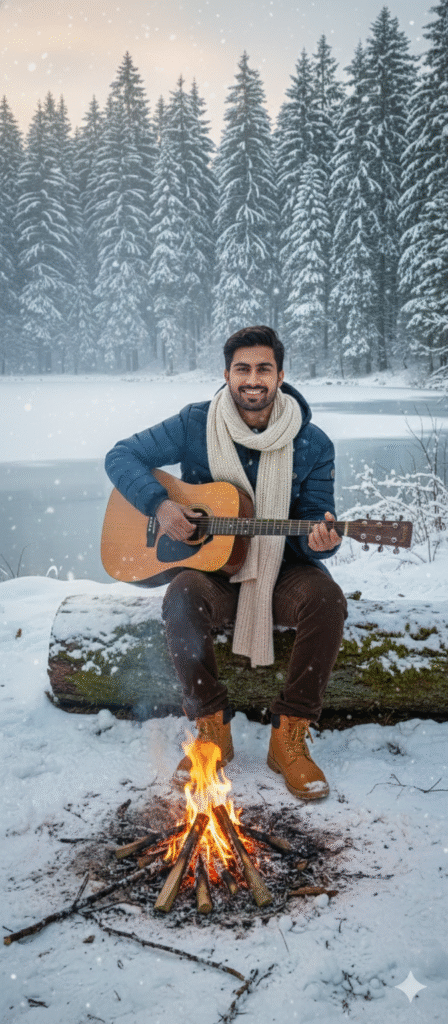
A beautiful young man sitting on a wooden log in a snowy forest beside a calm frozen lake and tall pine trees. She is wearing a stylish winter jacket, woolen scarf, cozy pants, and warm boots. A small campfire is glowing in front of her with bright orange flames. She is happily playing an acoustic guitar while smiling at the camera. The atmosphere is dreamy, cozy, and cinematic with soft winter lighting and light mist rising from the lake in the background.Keep My face 100 percent same as the in photo

Generate a 8k photo-realistic image of a young woman in a graceful pose. She is wearing a dark blue chiffon saree that is flowing gently in the wind. She is wearing same colour blouse. She is sitting on a snow-covered rock with a majestic, snow-capped mountain range in the background and it is little snowing also. Her hair is slightly windblown, and she is looking in front right side, giving the scene a serene and ethereal feel. Give a close up photo of face The Lighting should be bright and keep my face 100 percent same as in the photo
Create a Photo
How to Get Google Gemini Winter Photo Editing Prompts
Finding the right prompt is simple. Just follow these quick steps:
Step 1: Visit Our Website
On the homepage, look to the right side for the three-dot button and click it.
Step 2: Open the Prompt Section
A new menu will appear. Select the option labeled “Prompt.”
Step 3: Choose Your Winter Editing Prompt
You will now see all available editing prompts. Scroll and select the Winter Photo Editing – Google Gemini Prompt you like.
Step 4: Copy the Prompt
After selecting, a new page will open. Scroll down until you see a highlighted text.
Copy that text—this is your ready-to-use prompt.
If you have any confusion, just leave a comment. We will guide you step-by-step. And after editing, don’t forget to share your results with us!
How to Edit Your Photo Using Google Gemini
Many people go viral with winter-themed edited photos—and most of them use Gemini Prompts. Here’s the easy way to do it:
Step 1: Open Google Gemini
Search “Gemini” on your mobile or computer and click the first link. Sign in using your Gmail account.
Step 2: Upload Your Photo
After logging in, you’ll see a search box with a plus sign (+).
Click it to open your gallery and select the photo you want to edit.
Step 3: Paste Your Prompt
Below the photo, a text box will appear.
Paste the winter editing prompt you copied earlier and press Send.
Step 4: Save Your Edited Photo
Within a few seconds, your edited winter photo will be ready.
Open it and tap the Save button at the top to download it to your gallery.
That’s it! Your winter-themed edit is done in just a few steps.
Conclusion
Google Gemini Winter AI Photo Editing Prompts have become my favorite tool. Earlier, I thought creating viral photos required lots of effort. But now I know—one good prompt can do all the magic.
With just a single prompt, I added fog, cold tones, snow-like effects, and a dreamy winter feel to my photos. People keep asking where I clicked them—but the secret is simple: Google Gemini.
Whether it’s
- Google Gemini AI photo editing prompts
- Winter Gemini photo editing prompts
- Trending girl photo editing prompts
—they are all going viral right now.
If you want your winter photos to stand out on Instagram or Facebook, give these prompts a try. Your picture will look stunning!
Thank you for reading.